Image to Minecraft Skin Converter
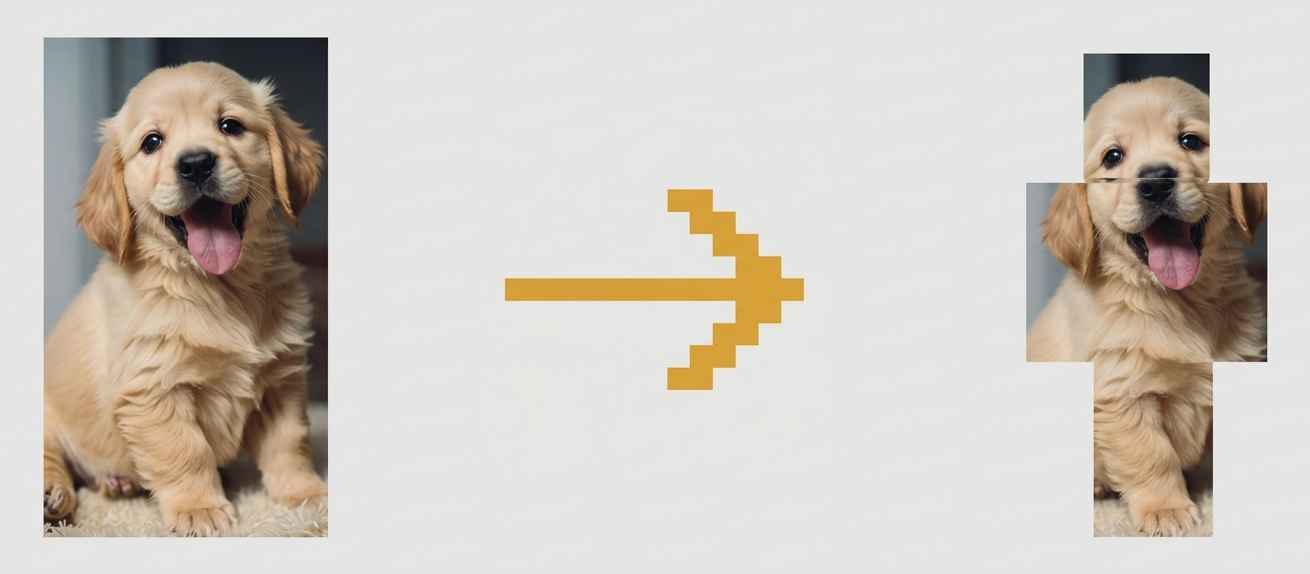
Turn Any Image into a Minecraft Skin
Want a Minecraft skin that looks like you, your favorite character, or a logo you love? With our Image to Minecraft Skin Converter, you can turn almost any picture into a playable skin in just a few clicks. No drawing skills or design software needed.
What Is the Image to Minecraft Skin Converter?
This tool lets you upload an image (like a selfie, pet photo, or artwork) and automatically converts it into a Minecraft‑style skin. The result is a .png skin file that you can download and use in Minecraft Java or Bedrock. After converting, you can also open the skin in our editor to fix colors, add details, or clean up pixels.
Why Use an Image to Skin Tool?
- Create a skin that looks like you, your friends, or your favorite character.
- Save time compared to drawing every pixel by hand.
- Use any picture as a base, then polish it in the editor for a unique final look.
- Perfect for YouTubers, streamers, and server owners who want matching or themed skins.
Features of Our Image to Minecraft Skin Converter
- Simple upload: Drag and drop or select any supported image file from your device.
- Minecraft‑ready output: Gets you a proper Minecraft skin
.pngthat works with Java and Bedrock. - Resolution options: Choose different resolutions so you can get classic or more detailed results.
- Model support: Convert for both Steve and Alex body types, then fine‑tune in the editor.
- Edit after convert: Open the generated skin directly in our Minecraft Skin Editor to adjust colors, shading, layers, and more.
How to Convert an Image to a Minecraft Skin
- Upload your image
- Click the upload button and choose a clear image from your device. Front‑facing pictures with good lighting work best.
- Choose model and options
- Pick Steve or Alex, select your preferred resolution, and apply any other settings the tool offers.
- Generate your skin
- Hit the convert or generate button. The tool will process your image and turn it into a Minecraft‑style skin layout.
- Preview and adjust
- View the result in 2D and/or 3D. If you want to tweak the design, open it directly in our Minecraft Skin Editor to edit pixels, colors, layers, and details.
- Download your skin
- When you’re happy with how it looks, download the
.pngfile. It’s now ready to upload to your Minecraft account.
- When you’re happy with how it looks, download the
Tips for Best Results
- Use a clear, front‑facing image with good lighting and minimal background clutter.
- Avoid very small or blurry images; bigger and sharper pictures give cleaner skins.
- Keep designs simple—very detailed photos may lose detail when converted to Minecraft pixels.
- After conversion, always do a quick pass in the editor to clean edges, adjust colors, and add shading.
How to Use Your Converted Skin in Minecraft
- Java Edition
- Go to your Minecraft launcher or Minecraft.net profile.
- Open the Skins section and upload the downloaded
.pngfile. - Choose Steve or Alex to match your skin and save.
- Bedrock Edition (mobile, console, Windows)
- Open Minecraft and go to Profile or Edit Character.
- Choose Import or Choose New Skin, then select your downloaded
.png. - Apply it as your new character skin.
Frequently Asked Questions (FAQs)
How does the “image to Minecraft skin” tool work?
You upload any picture, choose your options, and the tool converts it into a Minecraft‑style skin that you can then refine in the editor.
What kind of images give the best results?
Clear, front‑facing images with good lighting and simple backgrounds usually convert into cleaner skins with better details.
Can I adjust the skin after conversion?
Yes, after the tool creates your skin, you can open it in the editor to fix colors, add shading, and clean up any pixels you do not like.
Does the converter support both Java and Bedrock formats?
The generated skin is saved as a standard Minecraft skin image that can be uploaded to Java or Bedrock as long as you pick a supported size.
Will every image look good as a Minecraft skin?
Not always; very detailed or complex images may lose detail when turned into pixels, so some manual editing is often helpful.