🎮 Minecraft Skins - All Skins 🎮
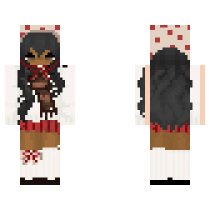
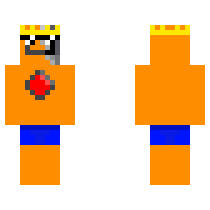
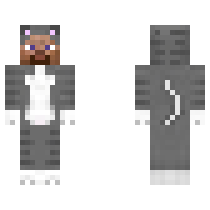
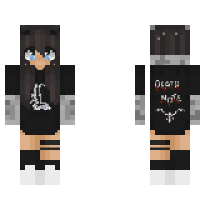
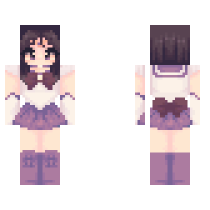
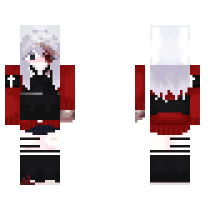
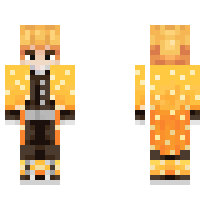
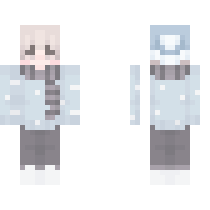
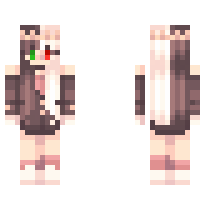
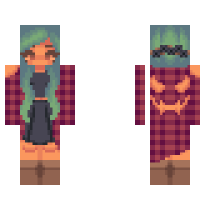
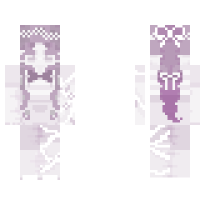
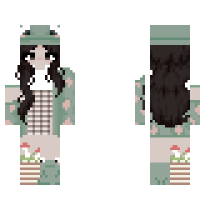
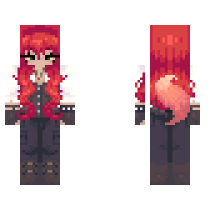
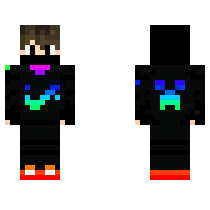
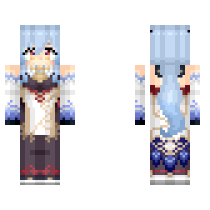
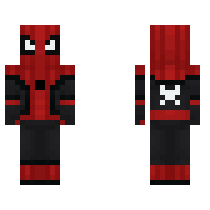
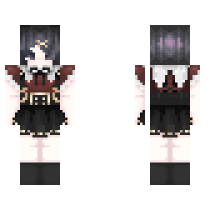
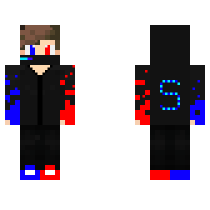
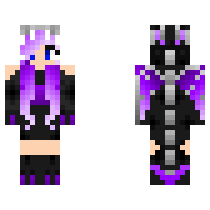
Discover Amazing Minecraft Skins
Looking for a new look for your Minecraft character? This page is your library of free to download Minecraft skins. Here you can browse tons of outfits, characters, and styles, then download any skin you like with a single click. Every skin is saved as a standard .png file, ready to use in both Java and Bedrock editions of Minecraft.
Why Download Skins from minecraftskinseditors.com?
Minecraft is more fun when your character looks unique. On this page, you can find skins for almost every style: casual, fantasy, PvP, cute, edgy, and everything in between. Each skin is carefully arranged so you can quickly scroll, preview it in 3D, and grab the one that fits your vibe. All downloads are free, and you can always open any skin in our editor to customize it further.
Browse Skins by Category
To make things simple, the skins are organized into clear categories. For example:
- Popular skins – the most downloaded and trending designs right now.
- New skins – fresh uploads if you want something nobody on your server has seen yet.
- Boys & girls skins – everyday outfits, casual styles, and simple character looks.
- Role‑play & fantasy – knights, wizards, mobs, anime‑inspired characters, and more.
- PvP & tryhard skins – clean, minimal skins that look great in competitive play.
You can use the search box to find specific themes (like “knight”, “cute”, or “purple”) and quickly narrow down the results.
How to Download the Minecraft Skin
Downloading a Minecraft skin from this page is very easy:
- Find a skin you like: Browse the list or search by name or tag.
- Open the skin page: Click on the skin thumbnail to see a larger view and 3D preview.
- Download the skin: Press the download button to save the
.pngfile to your device.
Once it’s saved, you can upload it to your Minecraft account or import it directly in the game, depending on your version.
Edit Any Downloaded Minecraft Skin in the Editor
If you like a skin but want to change something—like colors, hair, clothes, or add accessories—you can open it straight in the Minecraft Skin Editor on your site.
- Click the “Edit in Editor” (or similar) button on the skin page.
- The skin will load into the editor with all your usual tools: brush, eraser, color picker, grid, layers, model selection, and resolution control.
- Make your changes, check it in 3D, and download your new version when you’re done.
This is perfect for turning a popular skin into something more personal and unique.
Use the Minecraft Skin Grabber for Player Skins
If you can’t find a specific skin here, you can switch to the Minecraft Skin Grabber on your site. With it, you can:
- Enter any valid Minecraft username.
- Preview that player’s current skin in 3D.
- Download it as a
.pngand then customize it in the editor if you like.
This way, you can combine the download library, the grabber, and the editor to get exactly the skin you want.
How to Use Downloaded Skins in Minecraft Java Edition
- Download the skin from this page to your computer.
- Open the Minecraft launcher and go to the Skins tab.
- Click New skin or Browse, then select your downloaded
.pngfile. - Choose the correct model (Steve or Alex) and save.
- Start the game and your new skin will be applied.
How to Use Downloaded Skins in Minecraft Bedrock (Mobile, Console, Windows)
- Download the Minecraft skin file to your device.
- Open Minecraft and go to Profile or Edit Character.
- Choose Import or Owned → Import (wording may vary slightly by platform).
- Select your downloaded
.pngskin file. - Confirm and apply it as your character’s appearance.
Frequently Asked Questions (FAQs)
-
How do I download a skin from your website?
Open the skin’s page, click the download button, and a
.pngfile will be saved to your device for you to upload into Minecraft. -
Are the skins on minecraftskinseditors.com free?
Yes, skins on the site are free to download and use in Minecraft for personal use.
-
Can I upload and share my own skins?
You can create skins in the editor, save them, and then choose to share or publish them according to the site’s submission rules if available.
-
How do I change my skin quickly?
Download the new skin, open your Minecraft launcher or Bedrock profile, upload the file, and apply it; the change takes effect next time you join a world.
-
Are downloaded skins safe for my computer?
Skins are simple image files, so they are generally safe; just be sure you are downloading from trusted pages on minecraftskinseditors.com.
-
Can I use these skins on servers and realms?
Yes, once the skin is applied to your Minecraft account, it will appear on multiplayer servers and realms that allow custom skins.
-
Do I need an account on minecraftskinseditors.com to download skins?
No, you can download skins without creating an account. You only need a Minecraft account to upload the skin into the game.
-
Can I share or upload skins I download here to other sites?
You can usually use them in your game and in screenshots or videos, but it’s good practice to credit the original creator if you repost a skin somewhere else. Always respect any usage notes shown on the skin’s page.
-
Can I use these skins on servers and realms?
Yes. After you apply the skin to your Minecraft account, it will show up on most servers and realms that support custom skins.