🎮 Minecraft Banner Maker 🎮
Banner Preview
20×40 banner texture
Flat Texture (20×40)
⚙ Output
📋 /give Command (1.21+)
Uses the item-component format.
🔗 Share Link
🧵 Loom Steps
⭐ Ready-Made Designs
Click one to load it, then change anything you like.
Design your Minecraft banner!
🎨 Base Color
🧩 Pattern Palette
Pick a color below, then click a pattern to add it as a layer. ★ = needs a special item in survival.
🖼 Layers (0/16)
Survival looms apply max 6 layers. Commands can use all 16.
💾 Saved Designs
Create a Minecraft Banner That Actually Looks Like Yours
Vanilla banner patterns get the job done, but let’s be honest — after your third “Thing” or “Border” combo, every base in your world starts looking the same. Our Minecraft Banner Maker skips the trial-and-error loom grinding entirely. Pick your patterns, layer your colors, and watch the banner build itself in real time, no dye farming required to see if it actually looks good.
This isn’t a static pattern picker either. You’re stacking real in-game layers — base color, then pattern on pattern — the exact same way the loom does it, so what you design here is what you’ll get when you recreate it with dye and banners in your world.
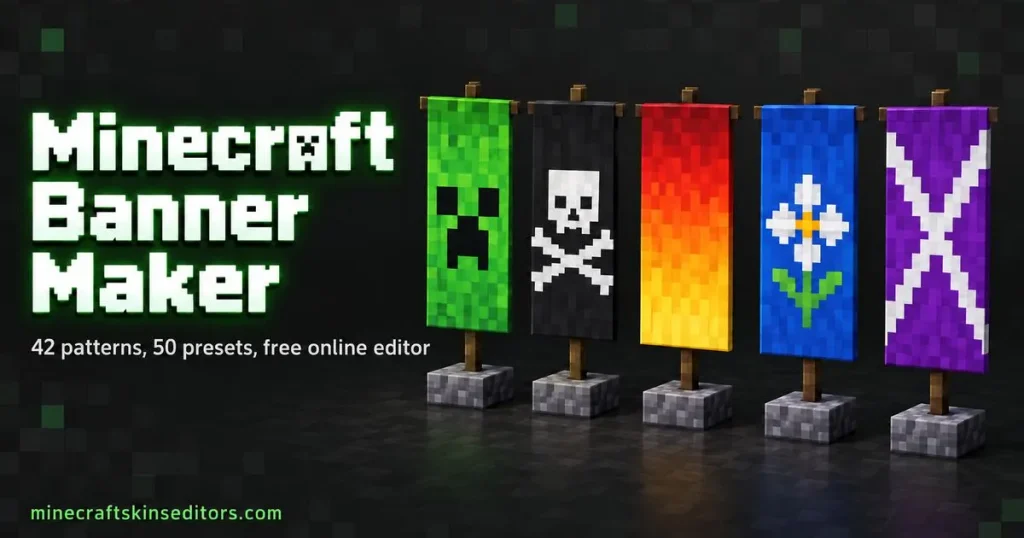
How to Build Your Custom Banner with out Minecraft Banner maker
- Pick a base color. This becomes your banner’s background — the color that shows before any pattern is applied.
- Add your first pattern. Choose from the full pattern library (stripes, crosses, gradients, creeper face, and more) and set its color.
- Stack more layers. Keep adding patterns on top of each other — this is where banners go from “fine” to “server centerpiece.” Survival crafting caps you at 6 layers total (including the base color); creative mode and
/givecommands support more if you want to go further. - Reorder or remove layers if a pattern is covering something it shouldn’t. Drag layers up or down to change what sits on top.
- Preview it full-size to check the design reads well from a distance — small details can get lost once it’s flying on a pole.
- Download your design, copy the loom crafting steps, or grab the
/givecommand — everything you need to recreate the exact banner in survival, creative, or on a command block, without guessing dye order.
Banner, Shield, or Both?
Since a shield uses the same pattern data as a banner, any design you build here can double as shield artwork too — useful if you want a matching look for your inventory and your gear. If you’re designing for a shield specifically, keep the center of the design clean, since the shield’s boss (the metal knob) sits in the middle and can cover fine detail placed there.
Why Use a Banner Maker Instead of the In-Game Loom?
- No wasted dye. Looms consume materials every time you experiment. Here, mistakes cost nothing — undo and try again instantly.
- See all 6 layers before committing. The in-game loom only shows one pattern preview at a time. Ours shows the finished banner as you build it.
- Get a shareable recipe. Designing a guild or faction banner for your server? Export the pattern order, loom steps, or
/givecommand so your teammates can build the exact same one. - Great for builders. Banners aren’t just decoration anymore — they’re used in flags, wall art, and even pixel-art builds. Planning the design digitally first saves hours of in-game adjustment.
Once your banner’s done, check out our Minecraft Skin Editor to give your character a matching look, or try the Minecraft Skin to Totem Converter for another way to personalize your inventory.
Popular Banner Design Ideas to Try
Not sure where to start? A few patterns come up again and again for good reason:
- Faction or guild crests — a bold border pattern with a centered symbol reads clearly even from across a base.
- National or fictional flags — stripes and crosses recreate most real-world flag layouts surprisingly well.
- Pixel-art mascots — the creeper face and skull patterns are built in, but you can get creative stacking triangles and squares to approximate simple shapes.
- Matching sets for a build. If you’re decorating a castle or fort, designing three or four banners with a shared color scheme but different patterns looks far more intentional than picking one random design and copying it everywhere.
- PvP team colors. Server admins running team-based games often standardize banners by color so players can identify allies at a glance — design the full set here before handing out the recipes.
Common Mistakes to Avoid
- Too many colors at once. Vanilla banners look best with 2–3 colors total. Stacking five or six different dyes usually turns into visual noise rather than a clean design.
- Forgetting the base color counts as a “layer.” If you’re aiming for a specific total pattern count, remember your base color takes up one of your six layers before you even add a pattern.
- Assuming the 6-layer cap always applies. That limit is a survival crafting-table restriction — creative mode and
/givecommands can stack more layers than the loom allows, so don’t rule out an ambitious design just because it looks “over budget” for survival. - Designing only at full size. Always check your banner at a distance too — some patterns that look great up close (like fine gradients) flatten into a blur once the banner’s actually flying on a pole.
- Ignoring layer order. A pattern added last always sits on top and can completely hide a pattern underneath it. If a design isn’t showing up right, check your layer order before assuming the pattern itself is broken.
Frequently Asked Questions (FAQs)
How many patterns can I put on one banner?
Survival crafting caps a banner at 6 layers total (including the base color), matching the loom’s real limit — but creative mode and /give commands support more if you want to design past that cap.
Does the pattern order matter?
Yes — each new pattern is applied on top of the last, so layer order changes what’s visible. Our tool lets you drag layers to reorder them and see the result immediately.
Can I use this for Bedrock and Java?
Banner patterns and dye colors work the same way across both editions, so any design you build here can be recreated in either version.
Will this tell me exactly what to craft in-game?
Yes, once your design is finished you can pull up the layer-by-layer loom crafting steps, or copy a ready-made /give command if you’d rather spawn the finished banner directly.
Can I use this to design a shield too?
Yes, shields use the same pattern data as banners, so any design you build here works as shield artwork as well — just keep in mind the shield’s center boss can cover fine detail placed in the middle.
Is there a limit to how many banners I can design?
No, you can design and export as many banner patterns as you want, completely free.
Can I save a banner design to edit later?
Yes, download or copy your pattern recipe so you can come back and tweak it anytime without starting over.
Can I recreate a flag or logo I found online?
You can get close by matching colors and using stripes, crosses, or border patterns, though banners are limited to Minecraft’s built-in pattern shapes, so extremely detailed or curved logos won’t translate perfectly.
Why does my banner look different in-game than in the designer?
This is usually a layer order or dye color mismatch — double check that you added patterns in the same order shown in the recipe, since even one out-of-order layer changes the final look.
Can I design banners for a server-wide theme?
Yes, many server owners use this to standardize team or faction banners — design a full matching set here and share the recipes with your build or admin team.