🎮 Minecraft Skin Combiner 🎮
Drag to rotate · Scroll to zoom · Click a body part to give it (and its layer) to the selected skin
Click a part here or on the 3D model to assign it to the selected skin. Colors show which skin each part uses.
Two Skins You Love, One Skin You Can Actually Wear
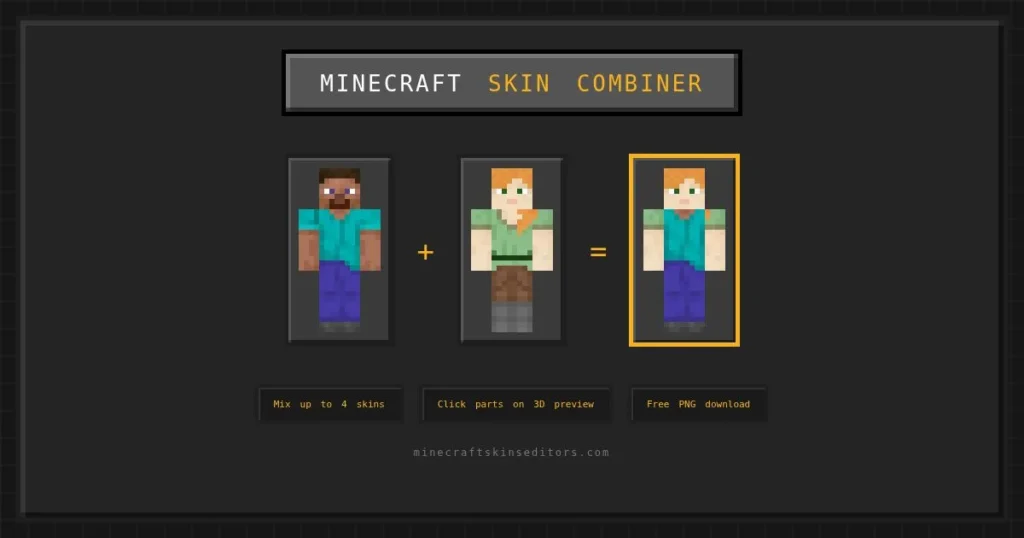
Ever liked the hairstyle on one skin and the outfit on a completely different one, and wished you could just… have both? That’s exactly what the Minecraft Skin Combiner (also called a skin merger) does. Upload two skins (or grab them by username), pick which parts come from which one, and merge them into a single, clean result — no manual copy-pasting pixel regions in an external image editor.
This works because a Minecraft skin is really just a set of mapped regions — head, torso, arms, legs, and their overlay counterparts. Instead of you eyeballing where one section ends and another begins, the combiner already knows the map and lets you choose per-region.
How to Combine Two Skins
- Upload or grab your first skin by file or username.
- Upload or grab your second skin the same way.
- Choose which regions to pull from each skin — for example, take the head and hair from Skin A, the body and outfit from Skin B.
- Preview the combined result in 3D to check nothing overlaps oddly or clashes in color.
- Fine-tune the blend — if colors from the two skins don’t quite match at the seams, jump into the editor to smooth the transition.
- Download your merged skin, ready to upload straight into Minecraft.
Where This Actually Comes in Handy
- Mixing a favorite face with a favorite outfit you found on two totally different skins.
- Building a “team” skin by combining elements from your friend group’s individual skins into one shared design.
- Salvaging an old skin. Got a skin you designed years ago with great hair but an outfit you’ve outgrown? Combine it with something newer instead of starting over.
- Costume mashups — pair a base character body with a completely different themed head or accessory set for a hybrid look.
Once you’ve merged your skin, run it through the Minecraft Skin Editor to clean up any rough seams, or check the Minecraft Skin History tool to keep a record of every version along the way.
Tips for a Cleaner Combine
- Match skin tones before combining head and body from different skins. If the two source skins use noticeably different shading styles, the seam at the neck can look jarring — a quick color match in the editor afterward fixes this fast.
- Combine similar art styles. Mixing a cartoonish, flat-color skin with a highly detailed, shaded one usually looks mismatched no matter how well the regions line up technically. Pulling from two skins with a similar level of detail blends much more naturally.
- Check the overlay layer separately from the base layer. It’s easy to focus only on the base regions and forget the overlay (hats, jackets, hair volume) also needs to be considered when picking which skin each part comes from.
- Use the 3D preview at multiple angles, not just from the front — seams that look invisible head-on can be obvious from the side or back.
A Few Ways People Use the Minecraft Skin Combiner
- “Frankenstein” builds — deliberately mixing wildly different styles for a chaotic, fun result rather than a seamless one.
- Iterating on your own old skins — combining an early design with a newer one to keep favorite elements while modernizing the rest.
- Team or duo skins — two friends combining elements from each of their own skins into a “shared” design that represents both of them.
Frequently Asked Questions (FAQs)
How does the combiner know where one skin part ends and another begins?
It uses Minecraft’s standard skin mapping (head, body, arms, legs, and overlay regions), so you can pick specific regions from each skin instead of manually cutting pixels.
Can I combine more than two skins?
The core tool merges two skins at a time, but you can combine your first merged result with a third skin in a second pass to layer in even more elements.
What if the colors don’t match between the two skins?
You can jump straight into the editor after combining to smooth out any color mismatches at the seams before downloading.
Can I combine a Steve model with an Alex model?
Both skins should use the same model type (Steve or Alex) for the arm regions to line up correctly, so it’s best to match model types before combining.
Will this work with skins I grabbed from other players?
Yes, you can grab skins by username using our built-in grabber and combine them just like uploaded files.
Can I preview the result before downloading?
Yes, a full 3D preview shows the combined skin from every angle before you commit to downloading it.
Is combining skins free?
Yes, the Skin Combiner is completely free with no limit on how many combinations you create.
Why does the seam between my two combined parts look off?
This is usually a shading or color-tone mismatch between the two source skins rather than a positioning error — try adjusting the colors near the seam in the editor for a smoother blend.
Can I combine my own skin with a randomly generated one?
Yes, any two skins can be combined regardless of whether they were hand-designed, randomly generated, or grabbed from another player.
Does combining skins work with different resolutions (64×64 vs higher)?
For the cleanest result, it’s best to combine two skins of the same resolution — mixing resolutions can require one skin to be scaled, which may soften fine details.