🎮 Legacy ↔ Modern Skin Converter 🎮
🔄 Conversion Direction
📥 Input Skin
—
📤 Converted Skin
—
ℹ️ What this does
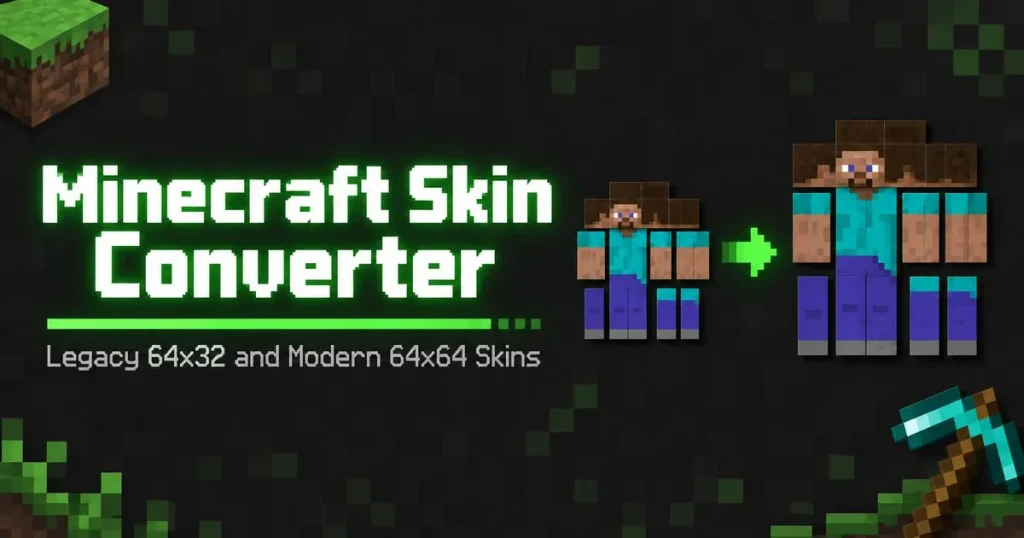
Upgrades a legacy 64×32 skin (pre-1.8 layout) to the modern 64×64 format by mirroring the right arm & leg faces into the new left-side slots. The result works in both Java 1.8+ and Bedrock Edition.
Upload a skin or grab by username to convert!
Grab from Username
Stop Losing Skins When You Switch Between Java and Bedrock
If you’ve ever moved a skin from Java to Bedrock (or the other way around) and had it come out stretched, misaligned, or missing the overlay layer entirely, you already know why this tool exists. Java and Bedrock skins aren’t actually built the same way under the hood — the layer handling, model geometry, and even how the arms are read differ just enough to break a straight file copy. Bedrock’s Character Creator also doesn’t give you a direct export button for a skin you’ve customized in-game, so most players need a separate way to pull that file out before converting it.
Our Java to Bedrock skin converter (and Bedrock to Java, both directions) fixes the mapping automatically so your skin looks the same no matter which version you’re playing. Think of it less like a “convert file format” tool and more like a translator — it takes what your skin is supposed to look like and rebuilds it correctly for the edition you’re moving it to with our Minecraft Skin Converter.
How to Convert Your Skin with Minecraft Skin Converter
- Upload your skin file, or grab one by username if you’re pulling it from an existing account.
- Pick your source edition — tell the tool whether you’re starting from a Java or Bedrock skin.
- Choose your target edition — where you want the converted skin to end up.
- Select your model type (Steve/wide or Alex/slim) if it isn’t detected automatically.
- Preview both versions side by side to make sure the overlay, arms, and proportions line up correctly.
- Download the converted file, ready to upload directly into Minecraft.
Why Skins Break When You Move Them Between Editions
- Different layer rules. Bedrock handles the overlay/second-layer differently than Java, so a straight file copy can leave you with a flat, detail-less skin.
- Geometry differences. Bedrock supports some model customizations Java doesn’t (and vice versa), which is part of why a raw PNG swap sometimes looks warped.
- Arm width confusion. Steve vs. Alex arm widths need to carry over correctly, or you’ll end up with a skin that looks fine standing still but glitches during animations.
This tool handles all of that translation for you, so you’re not manually repositioning pixels or guessing which template to use.
Already have a skin you love? Run it through our Minecraft Skin Editor first to fine-tune it, then convert it here for the other edition — or pull someone else’s skin instantly with our Minecraft Skin Grabber and convert that instead.
Java vs. Bedrock Skins: What’s Actually Different
It helps to know what’s changing under the hood, especially if you plan on editing your skin further after converting it:
- Slim arm support works differently. Java tracks the Alex (slim) model as an account-level setting tied to your skin file, while Bedrock handles model type through its geometry system. The converter maps between the two automatically.
- Overlay behavior isn’t identical. Bedrock’s second skin layer renders slightly differently than Java’s, which is the most common reason a manually copied skin ends up looking flat or loses details like hair strands and jacket folds.
- File requirements differ. Bedrock skins are typically tied to specific geometry definitions bundled with the skin, while Java uses a more straightforward flat 64×64 PNG. This is part of why a raw copy-paste between editions so often fails.
- Custom Bedrock geometry (persona skins) isn’t always convertible. Standard “classic” skins convert cleanly in both directions, but if a Bedrock skin uses custom persona geometry (extra accessories built into the 3D shape itself, not just the texture), some of that detail may not carry over to Java, since Java doesn’t support custom model shapes at all.
Tips for a Clean Conversion
- Start from the highest-quality version of your skin you have — converting a low-res or already-stretched file will carry those issues into the new version.
- Always check the overlay layer after converting. It’s the single most common spot for details to shift or disappear.
- If something looks off, re-run it through the editor rather than trying to fix pixels manually — small adjustments post-conversion are much faster in-tool.
Frequently Asked Questions (FAQs)
Why doesn’t my Java skin just work in Bedrock?
Java and Bedrock use different underlying model and texture layer systems, so a skin built for one edition often needs its layers and proportions adjusted before it displays correctly in the other.
Will converting my skin change how it looks?
A good conversion keeps your design visually identical — same colors, same details — while adjusting the technical layer structure so it renders correctly on the new edition.
Does this work with both Steve and Alex models?
Yes, the converter detects and preserves arm width (classic or slim) so your model type carries over correctly between editions.
Can I convert a skin I downloaded from someone else?
Yes, as long as you have the PNG file (or the username to grab it), you can run it through the converter regardless of where it originally came from.
Do I need separate files for Java and Bedrock afterward?
Yes, each edition needs its own properly formatted file, and this tool generates the correct version for whichever edition you selected as your target.
Will my overlay layer (hats, jackets, etc.) survive the conversion?
Yes, the converter is built specifically to preserve overlay details, since that’s usually the part that breaks with a manual file swap.
Is this free to use?
Yes, converting skins between Java and Bedrock is completely free, with no limit on how many times you use it.
Why does my converted skin look flat compared to the original?
This almost always means the overlay layer didn’t carry over cleanly — try re-running the conversion and double-check the overlay preview before downloading.
Can I convert a skin that uses custom Bedrock persona geometry?
The texture and colors will convert, but custom 3D geometry accessories built into a Bedrock persona skin can’t be represented in Java, since Java doesn’t support custom model shapes.
Do I need to convert my skin every time I switch devices?
No — once you have both a Java and Bedrock version saved, you can upload whichever file matches the edition you’re currently playing on.
How do I get my skin out of Bedrock’s Character Creator to convert it?
Bedrock doesn’t have a built-in “export” button inside Character Creator, so most players either use the skin’s original PNG file (if they made it outside the game) or grab it by username with a tool like our Minecraft Skin Grabber before running it through the converter.